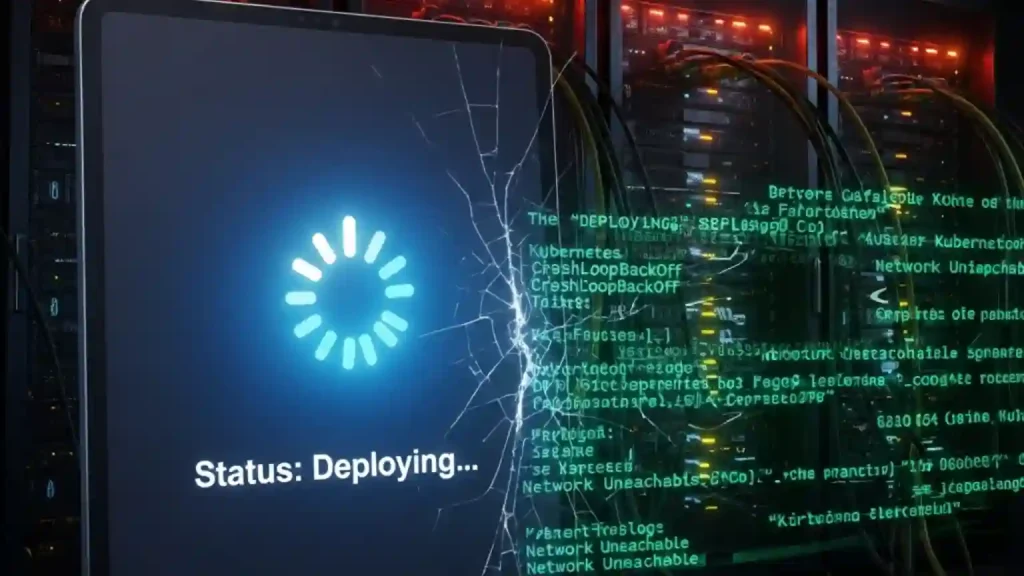
The “Deploying” Spinner is a Lie
You didn’t buy a server to stare at a blue spinning circle. You bought it to stream Plex, host Nextcloud, or block ads with Pi-hole. Yet, here you are. The TrueNAS Scale UI says “Deploying,” and it has been saying that for 45 minutes. The fans in your server rack are humming that low, steady drone of “everything is fine,” but the silence on your network says otherwise.
Here is the hard truth: The “Deploying” status in the TrueNAS web interface is a mask. It is a polite, user-friendly cover-up for a chaotic backend reality. TrueNAS Scale isn’t just a NAS; it’s a hyper-converged Kubernetes cluster running K3s. When that spinner is stuck, it doesn’t mean your app is “loading.” It means the orchestration layer has hit a wall.
⚠️ SYSTEM ARCHITECTURE WARNING
THIS GUIDE IS SPECIFIC TO TRUENAS SCALE K3s (KUBERNETES) ARCHITECTURE.
Target Versions: Bluefin, Cobia, Dragonfish (24.04 and older).
🛑 STOP: If you are running TrueNAS Scale 24.10 (Electric Eel) or newer, your system uses Docker Compose. The commands below (k3s/kubectl) DO NOT EXIST on your system and will fail.
Step 0: Verify Your Architecture
Run this safety check in your Shell first:
which k3s > /dev/null && echo "✅ SAFE: You are on K3s." || echo "❌ STOP: You are on Docker. Close this guide."
⚠️
CRITICAL DISCLAIMER & LIMITATION OF LIABILITY
USER DISCRETION IS ADVISED. The procedures outlined in this article involve modifying core system configurations using root privileges (sudo). Improper execution generally results in system instability, boot failures, or permanent data loss.
THE INFORMATION IS PROVIDED “AS IS”, WITHOUT WARRANTY OF ANY KIND. The author and publisher strictly disclaim any liability for any damage to hardware, software, or data corruption arising from the use of this information. You are solely responsible for ensuring you have a verifiable backup of your configuration before proceeding.
Most guides will tell you to “wait a bit” or “reboot.” We aren’t doing that. We are going to bypass the middleware, open the hood, and talk directly to the engine.
Stop Guessing: The Kubernetes Diagnosis (The “Red Pill”)
The biggest mistake TrueNAS users make is trusting the “Application Events” log in the UI. Often, it’s empty. Why? Because if the container hasn’t been scheduled yet, there are no application events to log. You are looking for a crash report for a car that hasn’t even left the garage.
To fix this, we need to use the Shell. You can access this via System Settings -> Shell in the browser, or (preferably) SSH into your box.
The Command You Need to Memorize
💡 Pro Tip: Is K3s even running?
Before running kubectl commands, ensure the engine isn’t stalled:
systemctl status k3s | grep Active
If you are coming from standard Docker, you might try typing docker ps. On modern versions of TrueNAS Scale (Cobia/Dragonfish), this won’t work the way you think. Scale uses containerd via K3s. The command you need is k3s kubectl.
To save your sanity, I recommend setting a temporary alias for this session:
alias k='sudo k3s kubectl'
Now, instead of guessing, we use the Diagnostic Trinity. These three commands reveal what the UI hides.
| Command | What It Does | When to Use It |
|---|---|---|
| k get pods -A | Lists all pods in all namespaces. | First step. Finds the specific pod name and its real status (e.g., Pending, CrashLoopBackOff). |
| k describe pod [name] -n [namespace] | God Mode. Shows scheduler decisions, volume mount errors, and networking fails. | Use this when the pod status is “Pending” or “ContainerCreating”. |
| k logs [name] -n [namespace] -p | Shows the logs of the previous crash. | Use this when status is “CrashLoopBackOff” (the app starts and immediately dies). |
Scenario A: The “0/1 Nodes Available” Error (Scheduler Fail)
Symptom: The app status is stuck on “Pending.” It never even tries to download the image.
This is the most confusing error for single-node home labs. You see “0/1 nodes available,” and you think, “I am the node! I’m right here!”
I experienced this personally while setting up a Plex instance on an older Xeon build. The issue is usually a Taint. In Kubernetes, a “taint” is like a “Do Not Enter” sign spray-painted on your server. If the TrueNAS middleware fails to initialize a service (like the storage driver) during boot, it leaves a taint on the node to prevent apps from starting on a broken system.
To confirm this, run:
sudo k3s kubectl describe pod [your-pod-name] -n [namespace]
Scroll to the very bottom to the “Events” section. If you see Taint {ix-svc-start}, your node is locking itself down. This is rarely fixed by waiting. It usually requires restarting the K3s service or checking if your GPU isolation settings are ghosting the resources.
The GPU Trap: If you checked “Isolate GPU” in the TrueNAS UI to pass it to a VM, Kubernetes sees 0 GPUs available. If your Plex app requests 1 GPU, the scheduler will hold that pod in “Pending” forever, waiting for a GPU that will never arrive.
Scenario B: “Back-off Restarting Failed Container” (The Permission Nightmare)
Symptom: The UI says “Deploying,” but kubectl get pods shows CrashLoopBackOff.
This is where the collision between the “Enterprise” world and the “Home Lab” world gets violent. According to the Fairwinds Kubernetes Benchmark Report, over 50% of organizations face stability issues due to configuration mismatches. On TrueNAS, this almost always boils down to one thing: Permissions (UID/GID).
Here is the scenario: You have a massive media dataset created via SMB. It has Windows-style permissions (NFSv4 ACLs) and is owned by `root`. You deploy a Bitnami-based app (like Nextcloud or Plex) which tries to run as user `33` (www-data) or `1001`.
The container starts, tries to write a lock file to the config directory, gets “Permission Denied,” and crashes. Kubernetes sees the crash and restarts it. This loop happens so fast the UI just displays the spinning “Deploying” wheel.
The Fix: HostPath vs. PVC
If you are mapping a HostPath (a folder on your actual ZFS pool) to the container, you must ensure the underlying dataset allows the app’s user to write to it.
- Option 1 (The Sledgehammer): Use the
strip ACLsoption in the dataset permissions and give ownership to the app user (e.g., `apps`). - Option 2 (The Scalpel): Modify the App configuration. Look for “Security Context” or “Run As User” and set it to match the owner of your dataset (often `0` for root, though this is insecure).
Scenario C: “Network Unreachable” & DNS Failures
Symptom: The app hangs on ContainerCreating or fails with `ImagePullBackOff`. You might catch a glimpse of “Error 101: Network is unreachable.”
This is an infrastructure failure. According to Red Hat’s Kubernetes adoption trends, network misconfigurations are a leading cause of deployment delays. In TrueNAS Scale, the Kubernetes cluster (CNI) builds its own internal network bridge.
The Golden Rule: If your TrueNAS host does not have a Default Gateway set in Network -> Global Configuration, the Kubernetes cluster cannot route traffic to the internet to pull images, even if the NAS itself can ping Google.
The CoreDNS Check
Competitors often ignore the kube-system namespace. If the internal DNS server (CoreDNS) isn’t running, no app can resolve names. Before you debug your app, debug the cluster:
sudo k3s kubectl get pods -n kube-system
If coredns or openebs-zfs-node are not in the “Running” state, you don’t have an app problem; you have a system problem. This usually requires fixing your physical network interface settings in the Apps -> Advanced Settings menu (ensure “Route v4 Interface” matches your active NIC).
🛑 FINAL CHECK: Don’t Lose Your Data
Before you nuke the platform, identify which datasets (PVCs) are currently bound. Run this to see what you are risking:
sudo k3s kubectl get pvc -A
If this list shows your critical media/database volumes, ensure you have backed up their contents manually via SFTP/Shell before proceeding.
The “Nuclear Option”: Resetting ix-applications
Sometimes, the corruption is deep. You might see “Dataset is busy” errors or “Read-only file system” in the events. This often happens if you rolled back a ZFS snapshot of the ix-applications dataset without stopping the Kubernetes service first. The database (etcd) thinks a volume exists, but the file system says it doesn’t.
When all else fails, you must nuke the platform to save the data. Warning: This deletes your app configurations (deployments), but it preserves your PVC data (databases/media) if they were not set to “Delete on Uninstall.”
🛡️ Verification Step (Highly Recommended)
Before proceeding to Step 4, ensure the dataset is completely removed to avoid “Dataset already exists” conflicts. Run this safety check in the Shell:
zfs list | grep ix-applications
Expected Result: No output (blank). If text is returned, the dataset still exists—repeat the deletion or reboot the server again.
- Go to Apps -> Settings -> Unset Pool. This stops the Kubernetes service cleanly.
- Reboot the server. (Crucial to clear file locks).
- Go to Datasets and delete the `ix-applications` dataset.
- Go back to Apps -> Settings -> Choose Pool.
This forces a fresh installation of the K3s cluster. It’s like reinstalling Windows but keeping your “My Documents” folder.
Conclusion: From Appliance to Administrator
TrueNAS Scale is powerful precisely because it isn’t a black box; it’s an open platform. The “Deploying” spinner is frustrating, but it’s also an invitation to learn. By using describe pod and checking the kube-system namespace, you stop hoping for a fix and start engineering one.
Next time you see that infinite spinner, don’t reboot. Open the shell, type k get pods -A, and see what’s really going on.
🛡️ Final Safety Note & Procedures:
- Backup Config: Before performing the “Nuclear Option” (resetting ix-applications), always download your System Configuration file via System -> General -> Manage Configuration -> Download.
- Data vs. Config: Deleting
ix-applicationsdestroys app settings (ports, environment variables), but typically preserves mapped PVC data (your actual media/databases) unless strictly configured otherwise.