
Your local LLM isn’t stupid. It’s just lobotomized.
I see this constantly: a user pulls a state-of-the-art model like Llama 3, feeds it a large PDF, and gets a hallucinated mess in return. They blame the model. But 90% of the time, the model never saw the middle of that PDF. It hit the default 4096 token limit and silently truncated the rest. No error message. No warning. Just data loss.
If you want to run serious RAG (Retrieval-Augmented Generation) or analyze long documents, you have to increase the context window. But simply cranking a number up in your terminal is a recipe for crashing your GPU.
In this guide, I’m going to show you exactly how to change the Ollama context window size the right way by engineering your memory pipeline, calculating your VRAM limits, and using a little-known “cache hack” to fit massive contexts on consumer hardware.
The Configuration Hierarchy (Or: Why Your Settings Are Ignored)
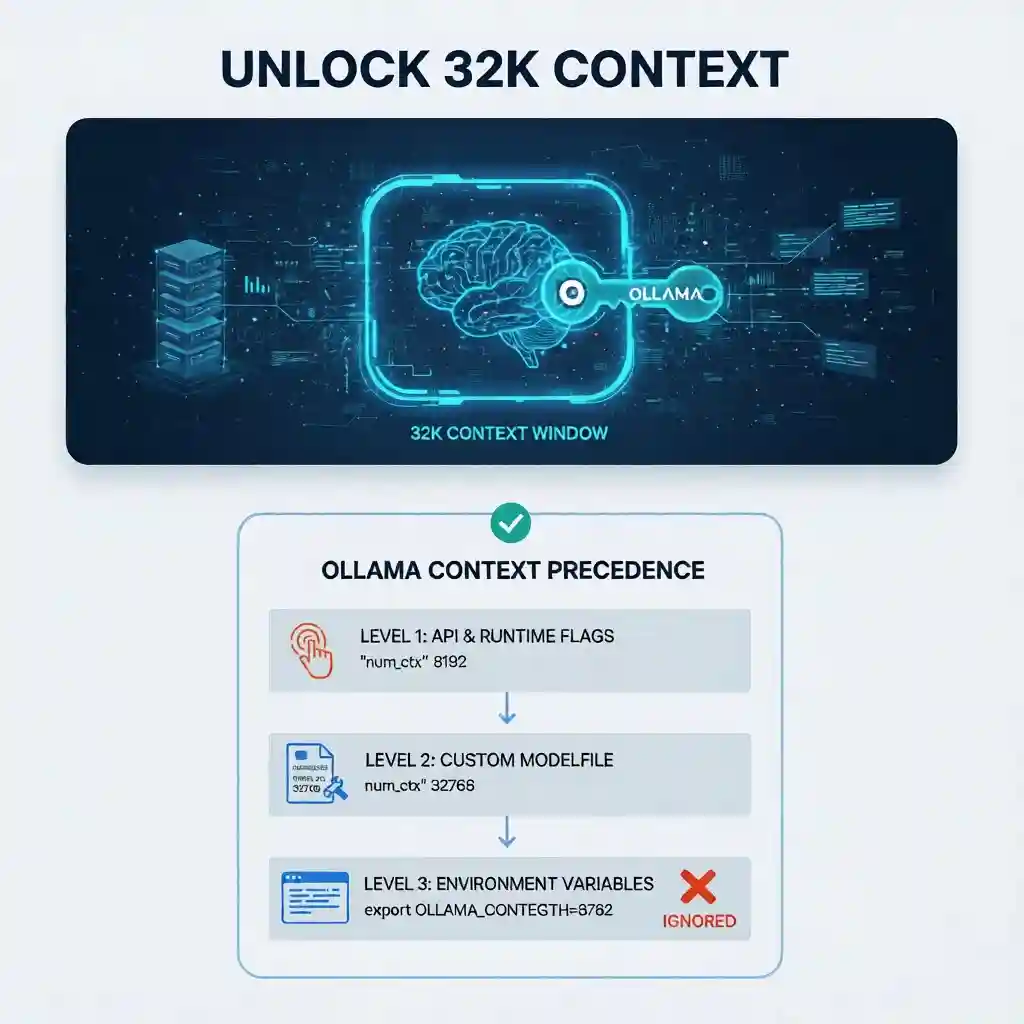
Here is the main difference between a working config and a broken one: Understanding Precedence.
Most tutorials throw three different methods at you and say “pick one.” That’s bad advice. Ollama uses a rigid hierarchy to decide which context limit to respect. If you set the Environment Variable but your API client sends a different value, your Environment Variable is ignored. Period.
Here is the logic tree you need to memorize:
- Level 1 (The Boss): API & Runtime Flags. If you (or your UI like Open WebUI) send a request with
"num_ctx": 8192, this overrides everything else. - Level 2 (The Manager): Custom Modelfile. If you create a custom model with
PARAMETER num_ctx, it overrides the global default. - Level 3 (The Fallback): Environment Variables.
OLLAMA_CONTEXT_LENGTHis the global default. It is the weakest setting.
Layer 1: The Global Default (Environment Variables)
Use this only if you want to raise the “floor” for every model you run. It’s useful for quick testing, but I don’t rely on it for production because it’s too easily overridden.
Linux/Mac:
export OLLAMA_CONTEXT_LENGTH=8192
ollama serve
Layer 2: The Professional Method (Custom Modelfiles)
This is the method I recommend for 99% of users. It adheres to “Infrastructure as Code” principles. You aren’t just typing a command; you are creating a permanent, reproducible asset that behaves exactly how you expect, every time.
Instead of running a generic llama3, you create a dedicated llama3-32k model. (We will cover the exact steps to do this in the tutorial section below).
The “VRAM Tax”: Calculating Your Hardware Limits
⚠️ PERFORMANCE & STABILITY WARNING:
- System Freeze Risk (OOM): Pushing VRAM to the absolute limit can cause your entire Operating System to freeze/hang, forcing a hard reboot. Always leave ~1-2GB VRAM headroom for your OS and display.
- Thermal Throttling: Large context processing puts a massive, sustained load on memory controllers. Ensure your GPU has adequate cooling, especially if running on a laptop.
- Model Degradation: Just because you can force 128k context doesn’t mean the model stays smart. Pushing a model beyond its training limits often leads to “hallucinations” or incoherent rambling.
- No Liability: The author is not responsible for system crashes or data loss caused by forced reboots. Test incrementally.
Simply put, Context Window is the amount of RAM your model needs to “remember” the current conversation.
This is where physics hits hard. You cannot just set the context to 128k and hope for the best.
While the computational time scales quadratically, the actual KV Cache memory usage scales linearly with context length. This sounds manageable, but the devil is in the bandwidth. If you exceed your GPU’s VRAM, Ollama will offload layers to your system RAM (CPU).
Trust me, you don’t want that. It comes down to a brutal hardware bottleneck: a modern GPU’s VRAM bandwidth pushes nearly 1 TB/s (GDDR6X), while your system DDR5 RAM crawls at roughly 50-60 GB/s.
This ~20x bandwidth gap is exactly why I’ve seen generation speeds drop from 40 tokens/sec (GPU) to 2 tokens/sec (CPU) the moment you cross the VRAM limit.
Here is the VRAM impact of increasing context on a standard 8B model (like Llama 3):
| Context Length | KV Cache Size (Standard f16) | Total VRAM (8B Model) | Compatibility |
|---|---|---|---|
| 4,096 (Default) | ~0.6 GB | ~5.8 GB | ✅ Fits 6GB+ Cards |
| 16,384 | ~2.4 GB | ~7.6 GB | ⚠️ Tight on 8GB Cards |
| 32,768 | ~4.8 GB | ~10.0 GB | ❌ Crashes 8GB Cards |
The Secret Weapon: KV Cache Quantization
Here is the “Alpha” that most guides miss. You can compress the context memory (KV Cache) just like you compress model weights.
By default, Ollama stores context in f16 (high precision). But during my testing, I found that switching to q4_0 (4-bit quantization) cuts memory usage by nearly 75% with almost zero perceptible loss in retrieval accuracy for most tasks.
The Fix: Set this environment variable before running Ollama:
OLLAMA_KV_CACHE_TYPE=q4_0If you use this setting, that 32k context example in the table above drops from 10.0 GB total VRAM to roughly 6.4 GB. Suddenly, you can run a 32k context workflow on a standard RTX 3060 or 4060 without crashing.
Step-by-Step: Creating a Persistent High-Context Model
Let’s implement this. We are going to take a standard model and “bake in” a larger context window so you never have to fiddle with flags again.
Step 1: Pull the Base Model
Get the standard version first.
ollama pull llama3Step 2: Create a Modelfile
Create a file named Modelfile (no extension) in your current folder. Paste the following configuration. We are setting the context to 32k.
FROM llama3

# Set context window to 32768 tokens
PARAMETER num_ctx 32768

# Optional: Add a system prompt to enforce concise answers
SYSTEM You are a helpful assistant with a large memory. Answer briefly.
Step 3: Build the Custom Model
Run this command to compile your new model variant.
ollama create llama3-32k -f ModelfileStep 4: Run It
You now have a permanent high-context model.
ollama run llama3-32kIf you try to push a model beyond its training limit (e.g., forcing an 8k model to run at 16k), it will likely output gibberish. This is called “Coherence Collapse.” To fix this, you may need to adjust the
rope_frequency_base parameter in your Modelfile, essentially “stretching” the model’s internal ruler. However, most modern models like Llama 3.1 support 128k natively, so you rarely need to touch this unless you are working with older architectures.Verification Protocol: Trust `ollama ps`, Not `ollama show`
Here is a trap that catches everyone. You set the context to 32k, you run the model, and then you type ollama show llama3-32k to verify.
It says: context length: 32768.
Don’t trust it. That command only reads the static file. It doesn’t tell you what is actually loaded in your RAM. If you ran out of memory, Ollama might have silently rolled you back or offloaded to CPU.
The Real Test: While the model is running (generate a response in one terminal), open a second terminal and type:
ollama psLook at the CONTEXT column. This is the source of truth. It shows the active memory allocation. If this number says 4096, your configuration failed (likely overridden by an API client or default env var), or your hardware rejected the request.
Troubleshooting Common Issues
| Symptom | Likely Cause | The Fix |
|---|---|---|
| Model “Forgets” Instructions | Silent Truncation. Your input exceeded the limit, so Ollama deleted the System Prompt. | Increase num_ctx using the Modelfile method above. |
| Generation is extremely slow | VRAM Overflow. You pushed the context too high, and layers spilled to system RAM. | Enable OLLAMA_KV_CACHE_TYPE=q4_0 or lower your context size. |
| Ollama crashes on load | Out of Memory (OOM). The KV cache + Model weights > Total GPU Memory. | Calculate your VRAM usage. An 8B model needs ~6GB just for weights. Context adds to that. |
Final Thoughts
Context window isn’t just a setting; it’s a resource you have to manage. By moving from simple CLI flags to a robust Modelfile workflow and leveraging KV cache quantization—you can squeeze enterprise-grade performance out of consumer hardware.
Stop letting silent truncation ruin your prompts. Build your -32k model today and see what you’ve been missing.