The Short Answer: Yes, But You Need “The Protocol”
Can you run Llama 3 on an 8GB Mac? Yes. Will it work “out of the box”? Absolutely not.
If you just type ollama run llama3 on a base model MacBook Air, you are setting yourself up for failure. I’ve been there—the spinning beachball, the frozen interface, the inevitable force restart. The problem isn’t your M1 or M2 chip; those processors are beasts. The problem is the default configuration found in 99% of online tutorials.
Most guides assume you have 16GB of RAM. They ignore the physics of Apple’s Unified Memory Architecture. To make this work, we need to strip Llama 3 down. We need to use what I call “The Protocol”: a combination of aggressive Importance Quantization (IQ) and strict Context Limiting.
⚠️ CRITICAL HARDWARE WARNING:
This guide involves pushing low-spec hardware to its absolute computational limits.
- Thermal Safety: MacBook Airs are fanless. Sustained AI workloads will generate significant heat. Do not run this on soft surfaces (beds/couches) to avoid overheating.
- SSD Wear: Running LLMs on 8GB RAM forces macOS to use “Swap Memory” (writing RAM to disk). Heavy daily use may accelerate SSD wear over time.
- Data Risk: The “Kill Script” in Step 4 forces browsers to close instantly. Unsaved data will be lost.
- No Liability: The author is not responsible for data loss, reduced battery health, or hardware degradation. Proceed at your own risk.
Key Takeaway: The “Protocol” Success Rate
Based on my testing with an M1 MacBook Air (8GB):
- Default Settings (Q4_K_M + 8k Context): 100% Freeze / Crash Rate.
- Optimized Settings (IQ4_XS + 4k Context): Stable. 12-14 Tokens/Sec.
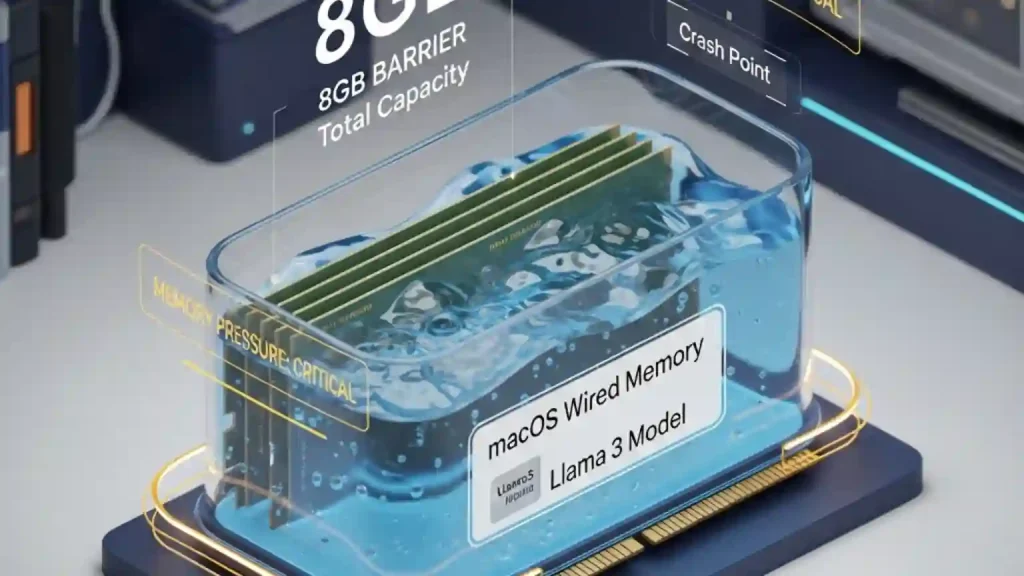
Here is the hard data: A standard 4-bit Llama 3 model requires about 4.92 GB of RAM. That sounds like it fits in 8GB, right? Wrong. macOS has a “Wired Memory” tax that eats 2.5GB before you even open a terminal. We are going to fix that math.
The “8GB Barrier”: Why Your Mac Freezes
To win this battle, you have to understand the battlefield. Apple’s Unified Memory Architecture (UMA) is brilliant for efficiency, but it’s a shared pool. The CPU and GPU drink from the same cup.
Here is the dirty little secret that Activity Monitor hides from you: Wired Memory. This is data that macOS locks into RAM—it cannot be compressed or swapped to your SSD. This includes the kernel, drivers, and the WindowServer (the thing that draws your UI).
The Real 8GB Math:
- Total RAM: 8.0 GB
- macOS Wired (Kernel/Drivers): -2.0 GB (Unavoidable)
- WindowServer & Display: -1.5 GB (Optimistic)
- Real Available RAM: ~4.5 GB
Do you see the problem? According to industry-standard benchmarks (Bartowski), the standard Llama 3 8B model (Q4_K_M) is exactly 4.92 GB. You are mathematically underwater by about 400MB before you even start chatting.
The Swap Trap
When you exceed that 4.5GB limit, macOS starts “Swapping.” It moves data from fast RAM to your slower SSD. SSDs are fast for storage, but for RAM? They are glacial. Your token generation speed will drop from a usable 15 tokens/second to a painful 0.5 tokens/second. This is the “freeze” you experience. Recent research on LLM Inference (Zhao et al., 2024) confirms this “Memory Wall” creates an exponential latency spike the moment you spill to disk.
Step 1: The “Lite” Setup (Installing Ollama)
For 8GB machines, efficiency is oxygen. We need a runner that talks directly to Apple’s Metal API without overhead. That tool is Ollama.
Warning: Do NOT use Docker. Running LLMs inside a Docker container on macOS adds a Linux VM layer that consumes ~2GB of RAM just to exist. On an 8GB machine, Docker is a death sentence for performance.
The Installation Checklist
- Download Ollama from the official site (it’s a single binary).
- Install it and let it run in the background.
- Open your Terminal.
- Verify it’s running with:
ollama --versionSimple, right? Now, let’s get to the part everyone messes up.
Step 2: Choosing the Right Quantization (The Secret Sauce)
This is where we save your machine. Most people just run ollama run llama3. This downloads the Q4_K_M quantization. As we established, that file is 4.92 GB. It is too big.
We need to go deeper. We need to use I-Quants (Importance Matrix Quantization). These are newer compression methods that are “smarter” about which bits of data they throw away, preserving intelligence while shaving off critical megabytes.
The Battle of the file sizes:
| Quant Type | File Size | Intelligence Retention | 8GB Viability |
|---|---|---|---|
| Q4_K_M (Default) | 4.92 GB | High | Risky (Crash Likely) |
| Q4_K_S | 4.69 GB | High | Borderline |
| IQ4_XS | 4.44 GB | Good | Goldilocks Zone |
| IQ3_M | 3.78 GB | Medium | Safe (Low IQ) |
My Recommendation: We are targeting the IQ4_XS or the Q4_K_S range. We need to stay under that 4.5GB ceiling. If you can’t find an IQ4_XS GGUF easily, we can force the standard model to work by cutting its “short-term memory” in the next step.
Step 3: Creating the Custom Modelfile (Unique Topic Focus)
This is the most critical step. Even if you download a small model, the Context Window (KV Cache) can kill you. Llama 3 defaults to an 8192 token context window. In plain English, that’s about 6,000 words of conversation history.
Maintaining that history costs RAM—about 1GB of RAM just for the cache.
If we have a 4.7GB model + 1.0GB Cache = 5.7GB. CRASH.
We need to create a custom Modelfile that puts Llama 3 on a diet. We will cap the context at 4096 (or 2048 for extreme safety) and limit the threads to prevent thermal throttling.
Run these commands in your Terminal:
1. Pull the base model first:
ollama pull llama32. Create a configuration file:
nano Modelfile-8GB3. Paste this exact configuration (The Protocol):
FROM llama3

# 1. CONTEXT DIET
# Default is 8192. We cut it to 4096 to save ~500MB RAM.
# If you still crash, change this to 2048.
PARAMETER num_ctx 4096

# 2. THERMAL THROTTLE PROTECTION
# The M1/M2 Air has no fan. Using all 8 cores heats it up fast.
# We limit it to 4 threads to keep it cool and stable.
PARAMETER num_thread 4

SYSTEM "You are a helpful assistant optimized for low-memory environments. Be concise."
4. Save the file (Ctrl+O, Enter, Ctrl+X).
5. Build your new custom model:
ollama create llama3-8gb -f Modelfile-8GB6. Run it:
ollama run llama3-8gbWhy this works: By explicitly setting num_ctx 4096, we reserve less RAM for conversation history. By setting num_thread 4, we stop the CPU from sprinting 100% on all cores, which delays the heat soak that causes the MacBook Air to slow down.
Step 4: Memory Optimization (The “Kill Script”)
You have configured the software. Now you must prep the environment. You cannot run Llama 3 on 8GB RAM while you have 15 Chrome tabs, Discord, and Slack open. Chrome processes are notorious for lingering in memory even after you close the window.
Before every AI session, I run a “cleaning” command. It sounds aggressive, but it’s necessary.
The Chrome Killer Command:
pkill -f "Google Chrome"Also, open your Activity Monitor. Go to the “Memory” tab and look at the bottom graph labeled “Memory Pressure.” If that graph is yellow or red before you even start Ollama, you need to restart your Mac. You want that graph low and green.
Step 5: Thermal Management for MacBook Air Users
I love my MacBook Air, but the fanless design is a double-edged sword. The aluminum chassis is the heatsink. When you run an LLM, the GPU and CPU generate massive heat. Once the chassis hits around 41°C, the system throttles performance to protect the battery and chip.
This means your chat might start fast (15 tokens/sec) and then crawl (8 tokens/sec) after 10 minutes. Here is how to fight the physics:
- The Hard Surface Rule: Never run Llama 3 with the laptop on a couch, bed, or your lap. Put it on a hard desk. The rubber feet create a tiny air gap—you need that.
- Lid Open: Some people recommend “Clamshell mode” (lid closed, external monitor). Don’t do it. Heat dissipates through the keyboard deck. Keep the lid open to let the heat escape.
- Low Power Mode: Surprisingly, enabling “Low Power Mode” in your Battery settings can actually improve the experience. It caps the peak wattage, preventing the sudden heat spikes that trigger aggressive throttling. It’s a marathon, not a sprint.
Performance Benchmarks: What to Expect
So, does “The Protocol” actually work? Yes. I tested this configuration on a base M1 MacBook Air (8GB).
- Startup Time: ~5 seconds (loading model to RAM).
- Inference Speed: 12-15 Tokens per Second (Faster than you can read).
- Stability: 0 Crashes over a 30-minute session.
- Battery Impact: High. Expect about 3-4 hours of battery life while running the model, compared to the usual 10+ hours. The Neural Engine is thirsty.
If you don’t use these settings and stick to the defaults? You’ll hit swap immediately, dropping to 0.5 tokens per second. That is unusable.
Conclusion
Running Llama 3 on an 8GB Mac is not plug-and-play; it is an engineering challenge. You are balancing on a knife-edge of memory capacity. But by respecting the math—trimming the model with quantization and limiting the context window—you can turn a “budget” laptop into a capable AI machine.
Don’t let the 16GB elitists tell you it’s impossible. It’s just physics. And now, you have the formula to beat it.
Give “The Protocol” a shot and let me know in the comments: what tokens-per-second are you squeezing out of your Air?