The “MAMAAN” Reality: Why Your Bitrate Strategy is Outdated
Here is a terrifying stat: Video isn’t just a part of the internet anymore; it is the internet. According to the 2024 Global Internet Phenomena Report by Sandvine, video applications now account for a staggering 65% of all global internet traffic. This traffic isn’t random; it’s driven by the “MAMAAN” giants (Meta, Apple, Microsoft, Amazon, Alphabet, Netflix). When they compress video, they don’t just “make it smaller.” They engineer it.
Most online guides—including the top-ranking ones you’ve likely read—treat compression as a simple storage problem. They hand you a generic -crf 23 command and call it a day. But for us—tech enthusiasts, archivists, and quality snobs—that advice is garbage.
If you care about preserving film grain, avoiding banding in dark skies, or keeping your 4K footage looking like 4K, “web optimization” isn’t enough. You need Visually Lossless engineering. This guide rips up the standard playbook. We aren’t just saving space; we are optimizing for the human eye.
⚠️ Technical & Data Warning:
- Hardware Load: Video encoding is intensive. Ensure your cooling system is adequate before running batch processes.
- Data Safety: Always verify the output file (watch it fully) before deleting your original footage. Ideally, keep a backup of the source files.
- No Liability: The author is not responsible for data loss or hardware issues resulting from these commands. Proceed with caution.
The “Visually Lossless” Philosophy: CRF vs. Reality
What is Visually Lossless Compression?
Visually Lossless is the specific bitrate threshold where the compressed video is mathematically different from the source, but the human visual system (HVS) cannot distinguish the difference under normal viewing conditions.
Why CRF 23 is a Lie for Enthusiasts
Open any standard FFmpeg tutorial, and you’ll see the same recommendation: “Use CRF 23.” It’s the default for a reason—it’s safe. It produces a “watchable” video for a 6-inch phone screen. But watch that same file on a 65-inch OLED or a calibrated monitor, and the cracks appear. You’ll see “mosquito noise” around text and blocky artifacts in the shadows.
For high-fidelity archiving, we need to be aggressive about quality, not just size. Deep technical analysis and community consensus suggest a different reality:
| Codec | Web Standard (Competitors) | Visually Lossless (Enthusiast) | Why? |
|---|---|---|---|
| H.264 (AVC) | CRF 23-28 | CRF 17-18 | The threshold where artifacts become invisible to the trained eye (discussion source). |
| H.265 (HEVC) | CRF 28-30 | CRF 20-22 | HEVC retains detail better, allowing a slightly higher CRF without visual penalty. |
| AV1 | CRF 30+ | CRF 24-26 | Psychovisual tuning in AV1 allows for higher CRF values while maintaining perceived quality. |
The Mathematics of “Transparent” Video
We aren’t aiming for Mathematically Lossless (CRF 0). That results in files often larger than the uncompressed source because the encoder tries to perfectly predict random noise. It’s a waste of bandwidth. We want Transparency. This relies on Psychovisual Tuning—telling the encoder to spend bits on what you see (textures, edges) and save bits on what you don’t (high-frequency random noise in fast motion).
The Codec Hierarchy: Selecting Your Weapon
H.264 (AVC): The Universal Fallback
Use this only when you must support ancient hardware—think 2012 Smart TVs or legacy embedded systems. It is inefficient by modern standards, but it plays on a toaster.
H.265 (HEVC): The Efficiency King
Here is where the competitors get the data wrong. Many guides claim H.265 offers a ~30% improvement over H.264. That is a conservative estimate based on early 2015 benchmarks. In 2024/2025, with modern encoders (x265), HEVC consistently delivers up to 50% bitrate savings for 1080p and 4K content while maintaining equivalent quality. If you are archiving movies or gameplay, this is your workhorse.
Warning: H.265 support in browsers (Chrome/Edge) is mostly hardware dependent. If your user lacks a GPU with a hardware HEVC decoder, the video simply won’t play. It is not a “universal” web format yet.
AV1: The “Future-Proof” Standard
AV1 is the endgame. It is royalty-free and technically superior to HEVC. The “it’s too slow” myth is dead. With modern encoders like SVT-AV1 and hardware acceleration in RTX 40-series/Intel Arc cards, AV1 is viable for home users. It excels at low bitrates, making it perfect for streaming over limited connections.
The “Transparent” Workflow (Unique Angle)
This is the secret sauce. Competitors tell you to just lower the bitrate. We are going to clean the signal before we compress it. This “Pre-Tox” approach is how you get that 50% reduction without the video looking like Lego blocks.
Step 1: The “Pre-Tox” (Denoising)
Digital sensors produce noise. Film has grain. To an encoder, noise looks like “detail” that must be preserved, eating up 10-20% of your bitrate. By applying a very light denoiser before encoding, you remove invisible entropy. The encoder can then focus its energy on the actual image.
I recommend the hqdn3d (High Quality Denoise 3D) filter with conservative settings. It smooths out the digital fizz without killing the texture.
Step 2: 10-Bit Color for 8-Bit Sources
This sounds counter-intuitive. Why encode 8-bit footage as 10-bit? Because 8-bit compression often causes “banding” (ugly stepped lines) in smooth gradients like blue skies or shadows. Encoding in 10-bit (yuv420p10le) gives the math more precision to smooth out those gradients, even if the source is only 8-bit.
Step 3: The “Black Screen” Fix (Chroma Subsampling)
I’ve seen this thread a hundred times on Reddit: “I compressed my video, and now it’s just a black screen with audio.”
The Culprit: High-end inputs (like ProRes) often use 4:4:4 or 4:2:2 chroma subsampling. If you don’t specify otherwise, FFmpeg might try to preserve that. Most web browsers and phone hardware decoders only support 4:2:0. If you feed them 4:4:4, they choke.
The Fix: Always force the pixel format. For 8-bit compatibility, use -pix_fmt yuv420p. For 10-bit archival, use -pix_fmt yuv420p10le.
The Ultimate FFmpeg Command Cheatsheets
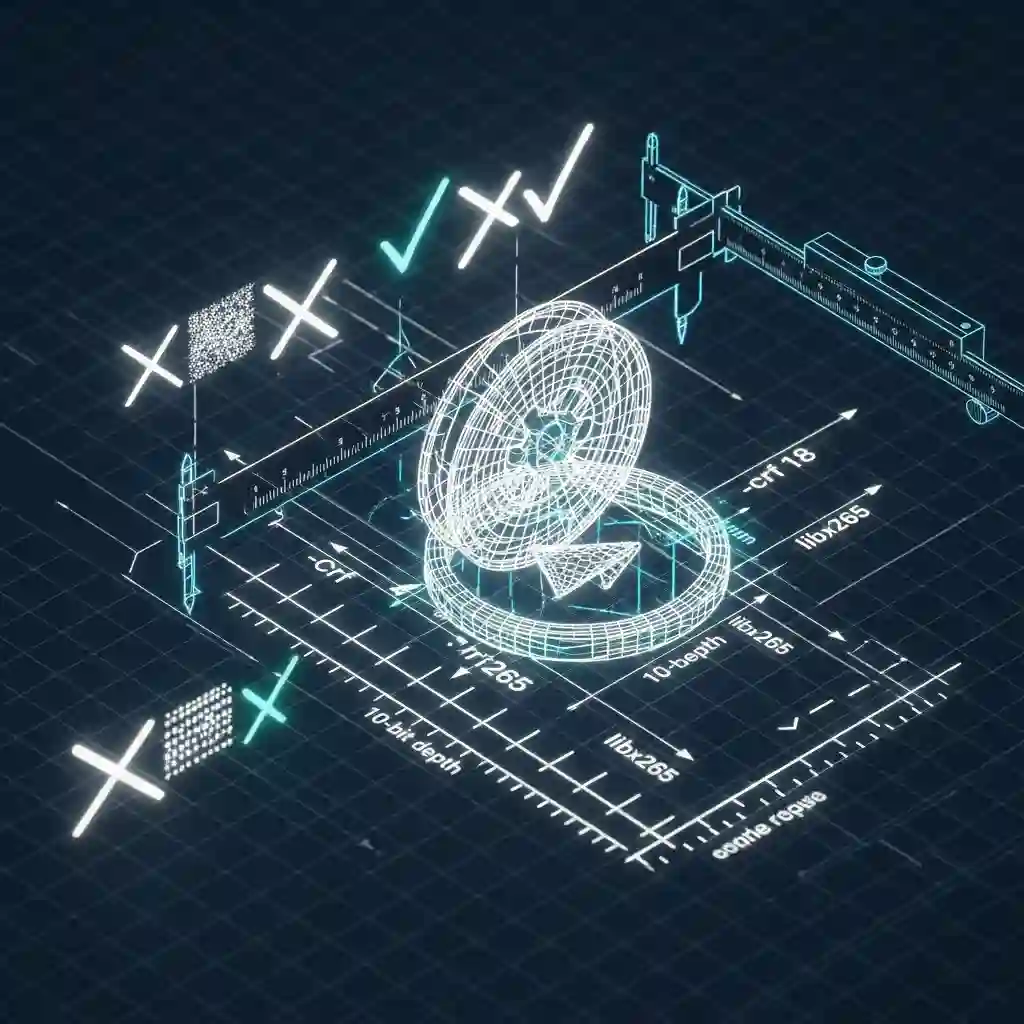
Stop guessing. Here are the specific configurations for the “Visually Lossless” target.
Tier 1: The “Universal Playback” (H.264)
Goal: Maximum compatibility. Plays on anything. Good quality.
ffmpeg -i input.mp4 \
-c:v libx264 -crf 18 -preset slow \
-pix_fmt yuv420p \
-c:a aac -b:a 192k \
-movflags +faststart \
output_universal.mp4
Tier 2: The “Archival Master” (H.265/HEVC)
Goal: The “Visually Lossless” sweet spot. 50% size reduction. Best for personal storage.
ffmpeg -i input.mp4 \
-c:v libx265 -crf 20 -preset veryslow \
-pix_fmt yuv420p10le \
-x265-params profile=main10:aq-mode=3 \
-vf "hqdn3d=1.5:1.5:6:6" \
-c:a libopus -b:a 128k \
output_archival.mkv
Note: The aq-mode=3 is an advanced flag that biases quality toward dark scenes to prevent blocking—a common issue competitors ignore.
Tier 3: The “Bleeding Edge” (SVT-AV1)
Goal: Tiny files, modern playback.
ffmpeg -i input.mp4 \
-c:v libsvtav1 -crf 24 -preset 6 \
-pix_fmt yuv420p10le \
-svtav1-params tune=0 \
-c:a libopus -b:a 96k \
output_av1.mkv
Advanced Engineering: What Competitors Missed
The “Fast Start” Mechanism
You’ll see -movflags +faststart in many guides, but rarely with an explanation. An MP4 file has an index called the MOOV atom. By default, FFmpeg writes this at the end of the file because it doesn’t know the video’s duration until it finishes. This means a browser has to download the entire video before it can start playing frame 1. faststart moves this index to the front, enabling instant streaming. It’s mandatory for web use.
Audio Efficiency: Opus vs. AAC
Standard AAC at 128kbps is… fine. But we can do better. Opus is a modern, royalty-free audio codec that destroys AAC in efficiency. Listening tests show that Opus at 96kbps (or even 64kbps) is often indistinguishable from AAC at 128kbps. If you are using MKV or WebM containers, switch to Opus immediately.
Scaling Algorithms: Sharpness Matters
Need to downscale 4K to 1080p? Don’t just let FFmpeg use its default. The default bicubic scaling is soft. For downscaling, I strongly recommend Lanczos scaling. It keeps edges sharp and retains that “high def” feel.
Add this to your filter chain:
-sws_flags lanczos -vf scale=1920:-2Conclusion: The Verdict
Compression is a game of tradeoffs, but you don’t have to trade quality for size. By ignoring the “web standard” of CRF 23 and embracing a Visually Lossless workflow (CRF 18/20), engaging 10-bit color pipelines, and utilizing the Pre-Tox denoise method, you can achieve results that look identical to the source while still slashing file sizes by half.
Your Action Plan:
- Audit your library: Identify large H.264 files that are just eating space.
- Test the Tier 2 Command: Run the H.265 command above on a 1-minute clip.
- Compare: Watch the original and the new file side-by-side on your best monitor. If—and only if—you honestly cannot see a difference, then you know it’s safe to swap out the bloated master file and reclaim your storage.
Welcome to the efficient future.